Saturday, 23 May 2015

Top Ten Free Proxy Websites For Anonymous Surfing

Ten Free Proxy Websites For Anonymous Surfing - picateshackz.com

Proxy sites are very handy when it comes to enabling you to surf all those websites that are blocked in your area/country due to whatsoever reasons without changing your place or Internet connection. There are a lot of Proxy Websites out there on the internet but We have compiled list of top 10 good proxies.

Sometimes, due to cyber rules, nation security or for for other many reasons some websites are made blocked for certain area, country or region. Blocking a website for certain area can have a lot of reasons.

But it is really very frustrating if you favorite gaming, social networking or software downloading websites are blocked at your area. Like, my college’s WiFi don’t let me visit Facebook, Mediafire and many other Torrent & File Sharing websites.

The best way to still visit those sites is from Proxy server. These Proxy sites are very handy which enables you to surf those websites without changing your place or Internet connection. There are a lot of Proxy Websites are available on the internet which provides you this service to visit any website anonymously without any hassle.

But generally, most of these websites are Malicious, Having Suspicious Programs on their servers which can steal your personal information while browsing internet from them. Other secure Proxy servers charges you for providing their services.

There are hundreds of free web proxies out there that provide anonymous surfing. Of these, most will even unblock MySpace, Gmail, FaceBook or any other no-no when surfing from school or work. Some have taken this a step further and allow for signing into your MSN, AIM or Yahoo! messaging accounts - conveniently through an anonymized (and secure) SSL version of eBuddy.com. Others allow for sending anonymous emails and newsgroup postings, even YouTube viewing. But is there really a “best” web proxy? We’re not sure about that; there’s pro’s and con’s to each one. Either way, here’s our picks for the Top Ten best free web proxies on the Internet, and why.


Pros
  • Cheap (and often free)
  • Will hide your IP from basic checks, and is therefore ok for accessing some geo-restricted websites and for account creation
Cons
  • Only useful for accessing websites*
  • Clever use of Flash or JavaScript allows many websites to detect your true IP
  • HTTP traffic is not encrypted, so government surveillance systems and your ISP can see what you are doing. If connected through HTTPS (SSL) then traffic cannot be monitored, but the IP of the HTTPS website can be logged. SSL encryption is roughly equivalent to 128-bit key length.
  • Each web browser must be configured individually to use the proxy server. However, the good news is that this is well supported by all browsers


1. VTunnel.com
http://vtunnel.com — VTunnel is more than just a web proxy; much more. Since secure SSL encryption (https://) is exceptionally harder to block than conventional http browsing, they’ve incorporated it as an option. Their SSL proxy can even be used to log into your MSN, AIM, Yahoo!, ICQ, GTalk, MySpace, FaceBook and eBuddy accounts, all within the browser. VTunnel even unblocks YouTube.com, without any noticeable lag in video streaming playback.
As with most free web proxies, VTunnel incorporates advertisements into the service (including pop-unders), although they are easily blocked by using the AdBlock Plus addon for Firefox.


Why VTunnel is #1 — Browsing is very speedy; you’ll hardly even notice you’re surfing anonymously, even on their SSL version. The anonymous web messaging is a huge plus, as well. Below is a look at MSN through VTunnel (in silent mode).


2. HideMyAss.com
http://hidemyass.com — HideMyAss! offers quite a selection of anonymizing features, including disposable anonymous email accounts (for receiving only); free proxy lists (for importing into browsers as manual proxies); file and image hosting (up to 400 MB filesize); link anonymizer; anonymous Google searching; and, of course, an anonymous web proxy that supports YouTube, YouPorn.com, RedTube.com (yes… anonymous 18+ browsing), and social sites (Myspace - do people still really use this?; Gmail.com; Facebook.com, etc.).

Why HideMyAss is #2 — Comes with a complete repertoire of options! If we were to choose a “best” feature, it would be the ability to filter working proxies from selected countries in the free proxy list. This is great for using (even temporarily) to sign up for services that aren’t available in your region (such as Spotify.com for U.S./Canadians).


3. Proxy.org

http://proxy.org — While Proxy.org isn’t in itself a web proxy, it contains the most complete and up-to-date listings of proxies found anywhere on the ‘Net. Proxies can be sorted by country, IP, ISP, software (PHProxy, CGI, Glyph, Surrogafier, cURL, etc.), SSL proxies, even [Tor](/2007/12/14/internet-tunneling-traffic-routing/#tor “Internet Tunneling & Traffic Routing - TOR”) servers.

Why Proxy.org is #3 — If you’re a fan of huge proxy lists, Proxy.org currently has 6,742 working proxies indexed. The best part is, users can enter in a URL of an intended site, and then click one of the proxies in which to surf anonymously with - this is great for anyone who needs to use a specific country proxy.


4. Anonymouse.org
http://anonymouse.org - Anonymouse has been around for over 10 years, and has become one of the most trusted sources for anonymous browsing. What sets Anonymouse apart from the rest is the ability to send anonymous emails and Usenet message posting - both of which when sent are randomly delayed up to 12 hours to maximize privacy.

Why Anonymouse is #4 — They’ve recently launched a Toolbar which supports both Explorer & Firefox. No longer do you need to visit the Anonymouse website to enjoy their services - just type in the URL of a site you wish to visit in the toolbar URL field, and that’s it! Also, Anonymouse doesn’t hijack or change the webpages it’s displaying; instead, there’s just a tiny closable advert. Here’s a look at the Toolbar in Firefox:


5. XRoxy.com
www.xroxy.com — XROXY allows users to browse through proxy criteria by using dropdown boxes, in order to filter between SSL, free & paid, cookie/scripts management - from their list of 525 proxies (509 of which are free). Additionally, “elite” users can subscribe to hand-picked proxy lists. Registered members (it’s free) are able to join in the Xorum (XROXY Forum) and browse the daily-updated lists of free, working proxies.

NOTE: If you want to view sites such as YouTube.com, you’ll first need to register at XROXY. Video playback at YouTube was almost perfect, with just a tiny bit of lag from time to time - as tested during peak Internet hours using XROXY’s own SSL proxy.


6. Proxify.com
http://proxify.com — Proxify.com has some very impressive features for anonymous browsing; including SSL surfing, removing ads, cookies, scripts (including java, of course), hiding referrer info, and even the ability to view sites as text-only.

We’re not fond of the ads that are embedded into the proxied webpages; however, it’s a small price to pay for Proxify’s blazing speed and functionality.


7. EvadeFilters.com
http://evadefilters.com — EvadeFilters is a brand-new startup that’s really taking off as of late. With a cool easy-to-use Web2.0 interface, browsing your favorite video or social bookmarking site is a breeze! Similar to VTunnel, it also supports messaging services (MSN, AIM, Yahoo, GTalk) in the browser.

In our tests, YouTube streaming is perfect, not to mention catch-free. You won’t need to sign up - just click and go! Look for EvadeFilters.com to really take off.


8. UnBlockAll.net
www.unblockall.net — UnBlockAll is a regular CGI proxy, but it’s mainly marketed towards the unblocking of social bookmarking sites. Simply drag n’ drop a social bookmarking icon into the URL window, and click GO! - then just login to your account as usual.

Similar to VTunnel, it also supports messaging services (MSN, AIM, Yahoo, GTalk) in the browser. One drawback to UnBlockAll is it doesn’t support SSL (yet?), so many users are still being blocked by aggressive work restrictions.


9. The-Cloak.com
www.the-cloak.com — the Cloak comes with a good array of features, although they really push towards the paid (subscribed) service. YouTube video streaming worked perfectly the first time; however, when leaving YouTube and trying to go back to it, we were blocked for 6 hours from accessing ANY sites through The Cloak. While fast, and free - it’s not for heavy proxy users.


10. ProxyBoxOnline.com
www.proxyboxonline.com — ProxyBoxOnline doesn’t offer any frills, but if you’re looking to unblock YouTube (with perfect playback), MySpace, Facebook and whatever else, then here’s a simple solution. It makes the list because it’s totally free, and offers SSL as an option.


Recommended article: How To Setup Free VPN Service On Kali Linux For Anonymity


Thursday, 21 May 2015

Snort OpenAppID Introduction And Configuration Guide

Snort OpenAppID Introduction- picateshackz.com

Snort is an open source network intrusion prevention and detection system (IDS/IPS) developed by Sourcefire. Combining the benefits of signature, protocol, and anomaly-based inspection, Snort is the most widely deployed IDS/IPS technology worldwide. With millions of downloads and nearly 400,000 registered users, Snort has become the de facto standard for IPS.

Snort is a very powerful IDS that in later versions can act like an IPS. Snort is free to download and use in the personal environment as was as in the business environment. In fact Snort is used by many Enterprises as a very effective option for their business because not only is it free but it is one of the most powerful IDS’s out there is you know what you are doing when you configure it.

Snort can be created as a program that you run when you want on a personal computer or it can be setup to run when your OS starts and protect all computers on your network from attacks.

If you want to use Snort to protect your entire network it will need to be placed in line with your internet connection. So as an example lets say that you have a business internet account with your local cable company and you want to protect it with a computer running Snort. The computer running Snort needs to be placed between the cable modem and the router, this way Snort is able to monitor every piece of traffic that comes into your network and is in the best place to discover possible attacks.


OpenAppID: How does it work?


effectively enables a business to create its own application firewall. With a set of application identifiers -- essentially signatures for identifying traffic from specific applications -- network and security admins can create, share and implement custom application detection rules within Snort systems. OpenAppID can be used to alert, block, perform contextual analysis and report what's truly happening with application usage on the network.

These robust features put the admin in the driver's seat for responding to existing and emerging threats by identifying rogue applications and malicious usage. Additionally, it removes the dependence on Layer 7 security vendors. Until now, enterprises needing the ability to detect and potentially block application-layer traffic have had no choice but to purchase a commercial product. With OpenAppID, enterprises can now use Snort -- a tool many security pros are quite familiar with -- as the basis to essentially build a customized, open source application firewall that alerts or blocks application traffic based on the organization's needs.

OpenAppID currently supports more than 1,500 applications. Admins can write their own application detectors as well.

You can download the latest development release of OpenAppID here.

OpenAppID: Can it work for you?


One thing I've learned about open source is that you usually get what you pay for. Snort is a proven tool and OpenAppID seems to be a beneficial feature, so this freebie could have some substance. But that doesn't mean it's automatically going to work as well as commercial alternatives (e.g., next-generation firewalls). As good as Snort is and as good as OpenAppID sounds, it's still new, so be prepared for the bumps in the road that are inevitable for any new software, as well as new features and changes in the coming months.

I learned a lot about Sourcefire's application-aware offerings. It's a worthy set of technologies that can benefit the complex enterprise networks. However, I don't believe Cisco is looking to cannibalize its commercial line with open source products such as Snort and OpenAppID. Hopefully the company will build out both so enterprises can choose which path to go down.

But with that said, should an enterprise experiment with OpenAppID to gain better control of network security at Layer 7? Here are some things to consider before jumping on the OpenAppID bandwagon:


  • First and foremost, ask: What is your enterprise security program trying to accomplish? What are its current business risks? Surprisingly, many organizations don't know the answers to these questions. The last thing you need to do is implement a new technology to fix a new problem associated with a risk you don't yet know about that may or may not be a big deal in your enterprise environment.

  • What existing security controls does your company have in place that may already provide the capabilities of OpenAppID (e.g., next-generation firewalls, content filtering, endpoint protection)? How is OpenAppID different? Better?

  • Does your organization have the in-house expertise to implement and oversee such a tool? With OpenAppID, you're in control; are you up for the challenge? Even if you are from a technical perspective, what about time? Whenever an enterprise takes on a new network security function, it has to give something else up or it'll wind up not doing anything effectively. What are you willing to give up in order to create more time for OpenAppID and network application protection?

If none of these questions raise concerns, then chances are OpenAppID is a good fit for the business. Try it out in a test environment, or at least in a subset of your production network that won't be adversely affected, until you get it configured properly. There's nothing like selling management on a proof-of-concept that ends up creating more problems than it solves.

When it comes to Layer 7 security, criminal hackers are highly innovative with application and malware-related attacks. Though enterprises might be a few steps behind, there's no reason they can't be on the same playing field.Just like how most street fights end up on the ground, most network security challenges end up at Layer 7; that's where enterprise security teams need to focus. The free network application controls offered by OpenAppID just might provide that level of protection and visibility you need in order to advance your network security to the next level.


Let us review how to install snort from source, write rules, and perform basic testing.

Snort Installation


# apt-get update
# apt-get install snort

Verify the Snort Installation


Verify the installation as shown below.

# snort --version
 ,,_ -*> Snort! <*-
o" )~ Version 2.9.2.2 IPv6 GRE (Build 121)
'''' By Martin Roesch & The Snort Team: http://www.snort.org/snort/snort-team
Copyright (C) 1998-2012 Sourcefire, Inc., et al.
Using libpcap version 1.3.0
Using PCRE version: 8.30 2012-02-04
Using ZLIB version: 1.2.7


Create the following snort.conf and icmp.rules files:


Open the configuration file of snort

# leafpad /etc/snort/snort.conf


Check the configuration file and check whether the icmp rules is included or not. If not, include the line below.

include /etc/snort/rules/icmp.rules

Open icmp rules file and include a rule mentioned below.

# leafpad /etc/snort/rules/icmp.rules

Include the below mentioned line into icmp.rule file.

alert icmp any any -> any any (msg:"ICMP Packet"; sid:477; rev:3;)

The above basic rule does alerting when there is an ICMP packet (ping).


Following is the structure of the alert:


<Rule Actions> <Protocol> <Source IP Address> <Source Port> <Direction Operator> <Destination IP Address> <Destination > (rule options)

Rule options

StructureExample
Rule Actionsalert
Protocolicmp
Source IP Addressany
Source Portany
Direction Operator->
Destination IP Addressany
Destination Portany
(rule options)(msg:”ICMP Packet”; sid:477; rev:3;)


Execute snort

Execute snort from command line, as mentioned below.

# snort -c /etc/snort/snort.conf -l /var/log/snort/

here, -c for rules file and -l for log directory


Show log alert


Try pinging some IP from your machine, to check our ping rule. Following is the example of a snort alert for this ICMP rule.

root@vishnu:~# head /var/log/snort/alert 
[**] [1:2925:3] INFO web bug 0x0 gif attempt [**]
[Classification: Misc activity] [Priority: 3]
12/02-12:08:40.479756 107.20.221.156:80 -> 192.168.1.64:55747
TCP TTL:42 TOS:0x0 ID:14611 IpLen:20 DgmLen:265 DF
***AP*** Seq: 0x6C1242F9 Ack: 0x74B1A5FE Win: 0x2E TcpLen: 32
TCP Options (3) => NOP NOP TS: 1050377198 1186998
[**] [1:368:6] ICMP PING BSDtype [**]
[Classification: Misc activity] [Priority: 3]
12/02-12:09:01.112440 192.168.1.14 -> 192.168.1.64


Alert Explanation


A couple of lines are added for each alert, which includes the following:

Message is printed in the first line.

Source IP
Destination IP
Type of packet, and header information.


If you have a different interface for the network connection, then use -dev -i option. In this example my network interface is eth0.

# snort -dev -i eth0 -c /etc/snort/snort.conf -l /var/log/snort/


Execute snort as Daemon


Add -D option to run snort as a daemon.

# snort -D -c /etc/snort/snort.conf -l /var/log/snort/
Default rules can be downloaded from:
https://www.snort.org/downloads/#rule-downloads


Thank you.

Monday, 18 May 2015

Top 15 Advanced Operating Systems For Hackers

Top 15 Advanced Operating Systems- picateshackz.com

Today we are discussing about top 15 advanced operating systems which has great penetration testing or ethical hacking tools. the top Os on this list is my favorite Linux distro Kali Linux because it is very popular in pentesting and it is developed by the same team of BackTrack (Offensive security). i am not including BackTrack on this list because it is no more available officially on their website and the next version of BackTrack is Kali Linux. the listed operating systems are here based on Linux kernel so it is all free operating systems. (Included download links for all Os) :)

I am recommending you to read my earlier post to understand more about Linux distros related to hacking security: 
Linux Powerful Distros For Hacking Or Security: Kali, Tails And Qubes


1. Kali Linux


Kali Linux is a Debian-derived Linux distribution designed for digital forensics and penetration testing. It is maintained and funded by Offensive Security Ltd. Mati Aharoni and Devon Kearns of Offensive Security developed it by rewriting BackTrack. Kali Linux is the most versatile and advanced penetration testing distro. Kali updates its tools and it is available for many different platforms like VMware and ARM. if you want to know more about Kali Linux then i recommend you read my previous article: An Introduction To Hacker’s OS Kali Linux And Setup Tutorial.

Click here to download


2. BackBox 


It includes some of the most used security and analysis Linux tools, aiming to a wide spread of goals, ranging from web application analysis to network analysis, from stress tests to sniffing, including also vulnerability assessment, computer forensic analysis and exploitation.

The power of this distribution is given by its Launchpad repository core constantly updated to the last stable version of the most known and used ethical hacking tools. The integration and development of new tools inside the distribution follows the commencement of open source community and particularly the Debian Free Software Guidelines criteria.

Click here to download


3. Parrot-sec forensic os


Parrot Security is an operating system based on Debian GNU/Linux mixed with Frozenbox OS and Kali linux in order to provide the best penetration and security testing experience. it is an operating system for IT security and penetration testing developed by the Frozenbox Dev Team. It is a GNU/Linux distribution based on Debian and mixed with Kali. 

Parrot uses Kali repositories in order to take latest updats for almost all the tools, but it also has its own dedicated repository where all the custom packets are kept. This is why this distro is not just a simple Kali “mod” but entire new concept which relies on Kali’s tool repositories. As such, it introduces a lot of new features and different developing choices.Parrot uses MATE as a Desktop Environment. Lightweight and powerful interface is derived from famous Gnome 2, and thanks to FrozenBox highly customizable with captivating icons, ad-hoc themes and wallpapers. System look is proposed and designed by the community members and also members of Frozenbox Network, who are closely following the development of this project.

Click here to download


4. DEFT


Deft is Ubuntu customization with a collection of computer forensic programs and documents created by thousands of individuals, teams and companies. Each of these works might come under a different licence. There Licence Policy describe the process that we follow in determining which software we will ship and by default on the deft install CD.

Click here to download


5. Live Hacking OS


As i am said before Live Hacking OS is also based on linux which has big package of hacking tools useful for ethical hacking or penetration testing. It includes the graphical user interface GNOME inbuilt. There is a second variation available which has command line only, and it requires very less hardware requirements.


6. Samurai Web Security Framework


The Samurai Web Testing Framework is a live linux environment that has been pre-configured to function as a web pen-testing environment. The CD contains the best of the open source and free tools that focus on testing and attacking websites. In developing this environment, we have based our tool selection on the tools we use in our security practice. We have included the tools used in all four steps of a web pen-test.

Click here to download


7. Network Security Toolkit (NST)


Network Security Toolkit (NST) is a bootable live CD based on Fedora Core. The toolkit was designed to provide easy access to best-of-breed open source network security applications and should run on most x86 platforms. The main intent of developing this toolkit was to provide the network security administrator with a comprehensive set of open source network security tools. 

What we find rather fascinating with NST is that we can transform most x86 systems (Pentium II and above) into a system designed for network traffic analysis, intrusion detection, network packet generation, wireless network monitoring, a virtual system service server, or a sophisticated network/host scanner.

Click here to download


8. Bugtraq


Bugtraq is an electronic mailing list dedicated to issues about computer security. On-topic issues are new discussions about vulnerabilities, vendor security-related announcements, methods of exploitation, and how to fix them. It is a high-volume mailing list, and almost all new vulnerabilities are discussed there.
Bugtraq team is experienced freaks and developers, It is available in Debian, Ubuntu and OpenSuSe in 32 and 64 bit architectures.

Click here to download


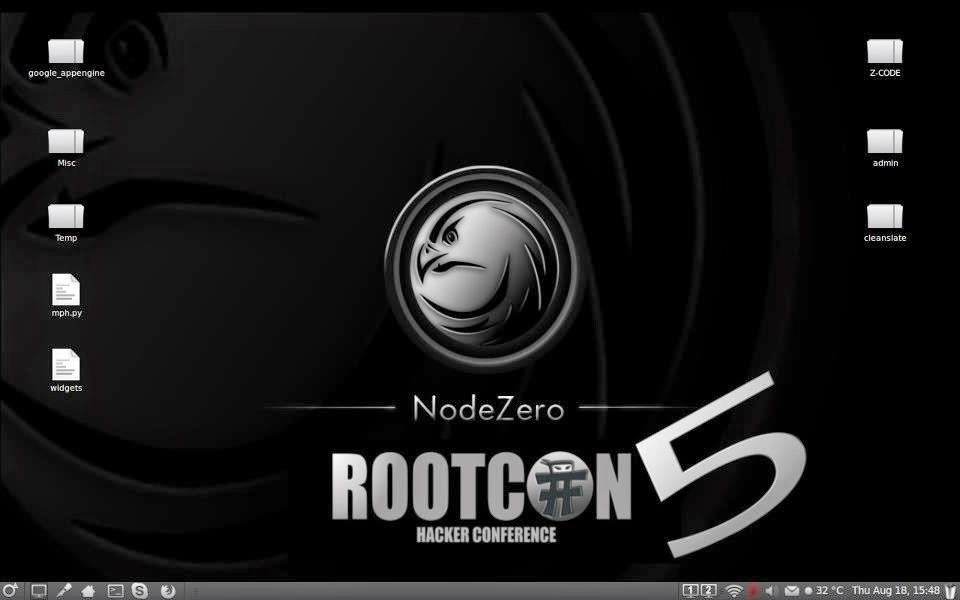
9. NodeZero


It is said the necessity is the mother of all invention, and NodeZero Linux is no different. There team is built of testers and developers, who have come to the census that live systems do not offer what they need in their security audits. Penetration Testing distributions tend to have historically utilized the “Live” system concept of linux, which really means that they try not to make any permanent effects to a system. Ergo all changes are gone after reboot, and run from media such as discs and USB’s drives. However all that this maybe very handy for occasional testing, its usefulness can be depleted when your testing regularly. Its there believe that “Live System’s” just don’t scale well in a robust testing environment.

All though NodeZero Linux can be used as a “Live System” for occasional testing, its real strength comes from the understanding that a tester requires a strong and efficient system. This is achieved in our belief by working at a distribution that is a permanent installation, that benefits from a strong selection of tools, integrated with a stable linux environment.

Click here to download


10. Pentoo


Pentoo is a Live CD and Live USB designed for penetration testing and security assessment. Based on Gentoo Linux, Pentoo is provided both as 32 and 64 bit installable live cd. Pentoo is also available as an overlay for an existing Gentoo installation. It features packet injection patched wifi drivers, GPGPU cracking software, and lots of tools for penetration testing and security assessment. The Pentoo kernel includes grsecurity and PAX hardening and extra patches - with binaries compiled from a hardened toolchain with the latest nightly versions of some tools available.

Click here to download


11. GnackTrack


GnackTrack is an open and free project to merge penetration testing tools and the linux Gnome desktop. GnackTrack is a Live (and installable) Linux distribution designed for Penetration Testing and is based on Ubuntu.

Backtrack is not only a single player in the field of ethical hacking, so you can try some other distribution as well, if you are Gnome lover than must try this, however backtrack 5 is also available on Gnome platform. Just like backtrack, Gnacktrack comes with multiple tools that are really helpful to do a effective penetration testing, it has Metasploit, armitage, wa3f and others wonderful tools.


Click here to download


12. Blackbuntu


Blackbuntu is distribution for penetration testing which was specially designed for security training students and practitioners of information security. Blackbuntu is penetration testing distribution with GNOME Desktop Environment. It's currently being built using the Ubuntu 10.10 and work on reference Back|Track.

Click here to download


13. Knoppix STD


Knoppix STD (Security Tools Distribution) is a Live CD Linux distribution based on Knoppix that focused on computer security tools. It included GPL licensed tools in the following categories: authentication, password cracking, encryption, forensics, firewalls, honeypots, intrusion detection system, network utilities, penetration, packet sniffers, assemblers, vulnerability assessment and wireless networking. Knoppix STD version 0.1 was published January 24, 2004, on Knoppix 3.2. Thereafter, the project stagnated, lacking updated drivers and packages. A release date for version 0.2 has not yet been announced. A list of tools is available on the official website.


Click here to download


14. Weakerth4n


Weakerth4n is a penetration testing distribution which is built from Debian Squeeze.For the desktop environment it uses Fluxbox.This operating system is ideal for WiFi hacking as it contains plenty of Wireless tools. It has a very well maintained website and a devoted community. Built from Debian Squeeze (Fluxbox within a desktop environment) this operating system is particularly suited for WiFi hacking as it contains plenty of Wireless cracking and hacking tools.

Tools includes: Wifi attacks, SQL Hacking, Cisco Exploitation, Password Cracking, Web Hacking, Bluetooth, VoIP Hacking, Social Engineering, Information Gathering, Fuzzing Android Hacking, Networking and creating Shells.


15. Cyborg Hawk


The most advanced, powerful and yet beautiful penetration testing distribution ever created. Lined up with ultimate collection of tools for pro Ethical Hackers and Cyber Security Experts. It has 700 + tools while Kali have 300+ and also dedicated tools for and menu for mobile security and malware analysis . Also it is easy to compare it with Kali as to make a better OS than Kali we have to outperform it. It is a new operating system based on Ubuntu linux, i am not tested this OS that is why i placed it in the last of this list.

Cyborg Hawk is developed by Team Cybord led by Vaibhav Singh and Shahnawaz Alam from Ztrela Knowledge Solutions Pvt. Ltd.


Recommended article: Top Ten Popular Hacking Tools 

Wednesday, 13 May 2015

Become A Hacker: Basics Of Networking

Become A Hacker: Basics Of Networking- picateshackz.com

After published a post 'How To Become A Hacker - Complete Guide For Beginners' there have been some questions regarding networking skills, It is very important topic to become a hacker, so this article will explain the basic networking a Ethical hacker or Penetration tester must learn.
Here is a list of basics of networking:
  1. DHCP
  2. NAT
  3. Subnetting
  4. IPv4
  5. IPv6
  6. Public vs Private IP
  7. DNS
  8. Routers and switches
  9. VLANs
  10. OSI model
  11. MAC addressing
  12. ARP

1. DHCP


As long as you're learning about your IP address, you should learn a little about something called DHCP—which stands for Dynamic Host Configuration Protocol. Why bother? Because it has a direct impact on millions of IP addresses, most likely including yours.
DHCP is at the heart of assigning you (and everyone) their IP address. The key word in DHCP is protocol—the guiding rules and process for Internet connections for everyone, everywhere. DHCP is consistent, accurate and works the same for every computer. Remember that without an IP address, you would not be able to receive the information you requested. As you've learned (by reading IP: 101), your IP address tells the Internet to send the information that you requested (Web page, email, data, etc.) right to the computer that requested it.

  • Protocols

There are more than one billion computers in the world, and each individual computer needs its own IP address whenever it's online. The TCP/IP protocols (our computers' built-in, internal networking software) include a DHCP protocol. It automatically assigns and keeps tabs of IP addresses and any "subnetworks" that require them. Nearly all IP addresses are dynamic, as opposed to "static" IP addresses that never change.
DHCP is a part of the "application layer," which is just one of the several TCP/IP protocols. All of the processing and figuring out of what to send to whom happens virtually instantly.

  • Clients and servers

The networking world classifies computers into two distinctive categories: 1) individual computers, called "hosts," and 2) computers that help process and send data (called "servers"). A DHCP server is one computer on the network that has a number of IP address at its disposal to assign to the computers/hosts on that network. If you use a cable company for Internet access, making them your Internet Service Provider, they likely are your DHCP server.

  • Permission slips

Think of getting an IP address as similar to obtaining a special permission slip from the DHCP server to use the Internet. In this scenario, you are the DHCP client—whenever you want to go on the Internet, your computer automatically requests an IP address from the network's DHCP server. If there's one available, the DHCP server sends a response containing an IP address to your computer.

  • How DHCP works

The key word in DHCP is "dynamic." Because instead of having just one fixed and specific IP address, most computers will be assigned one that is available from a subnet or "pool" that is assigned to the network. The Internet isn't one big computer in one big location. It's an interconnected network of networks, all created to make one-on-one connections between any two clients that want to exchange information.

One of the features of DHCP is that it provides IP addresses that "expire." When DHCP assigns an IP address, it actually leases that connection identifier to the user's computer for a specific amount of time. The default lease is five days.

Here is how the DHCP process works when you go online:

  1. Your go on your computer to connect to the Internet.
  2. The network requests an IP address (this is actually referred to as a DHCP discover message).
  3. On behalf of your computer's request, the DHCP server allocates (leases) to your computer an IP address. This is referred to as the DHCP offer message.
  4. Your computer (remember—you're the DHCP client) takes the first IP address offer that comes along. It then responds with a DHCP request message that verifies the IP address that's been offered and accepted.
  5. DHCP then updates the appropriate network servers with the IP address and other configuration information for your computer.
  6. Your computer (or whatever network device you're using) accepts the IP address for the lease term.

Typically, a DHCP server renews your lease automatically, without you (or even a network administrator) having to do anything. However, if that IP address's lease expires, you'll be assigned a new IP address using the same DHCP protocols.
Here's the best part: You wouldn't even be aware of it, unless you happened to check your IP address. Your Internet usage would continue as before. DHCP takes place rather instantly, and entirely behind the scenes. We, as everyday, ordinary computer users, never have to think twice about it. We just get to enjoy this amazing and instantaneous technology that brings the Internet to our fingertips when we open our browsers. I guess you could say DHCP stands for "darn handy computer process"...or something like that.

2. NAT


Stands for "Network Address Translation." NAT translates the IP addresses of computers in a local network to a single IP address. This address is often used by the router that connects the computers to the Internet. The router can be connected to a DSL modem, cable modem, T1 line, or even a dial-up modem. When other computers on the Internet attempt to access computers within the local network, they only see the IP address of the router. This adds an extra level of security, since the router can be configured as a firewall, only allowing authorized systems to access the computers within the network.
Once a system from outside the network has been allowed to access a computer within the network, the IP address is then translated from the router's address to the computer's unique address. The address is found in a "NAT table" that defines the internal IP addresses of computers on the network. The NAT table also defines the global address seen by computers outside the network. Even though each computer within the local network has a specific IP address, external systems can only see one IP address when connecting to any of the computers within the network.
To simplify, network address translation makes computers outside the local area network (LAN) see only one IP address, while computers within the network can see each system's unique address. While this aids in network security, it also limits the number of IP addresses needed by companies and organizations. Using NAT, even large companies with thousands of computers can use a single IP address for connecting to the Internet. Now that's efficient.
 NAT has many forms and can work in several ways:


  • Static NAT - Mapping an unregistered IP address to a registered IP address on a one-to-one basis. Particularly useful when a device needs to be accessible from outside the network.
  • Dynamic NAT - Maps an unregistered IP address to a registered IP address from a group of registered IP addresses.
  • Overloading - A form of dynamic NAT that maps multiple unregistered IP addresses to a single registered IP address by using different ports. This is known also as PAT (Port Address Translation), single address NAT or port-level multiplexed NAT.
  • Overlapping - When the IP addresses used on your internal network are registered IP addresses in use on another network, the router must maintain a lookup table of these addresses so that it can intercept them and replace them with registered unique IP addresses. It is important to note that the NAT router must translate the "internal" addresses to registered unique addresses as well as translate the "external" registered addresses to addresses that are unique to the private network. 
    This can be done either through static NAT or by using DNS and The internal network is usually aLAN (Local Area Network), commonly referred to as the stub domain. A stub domain is a LAN that uses IP addresses internally. Most of the network traffic in a stub domain is local, so it doesn't travel outside the internal network. A stub domain can include both registered and unregistered IP addresses. Of course, any computers that use unregistered IP addresses must use Network Address Translation to communicate with the rest of the world.


    3. Subnetting


A subnet is a logical grouping of connected network devices. Nodes on a subnet tend to be located in close physical proximity to each other on a LAN.
Network designers employ subnets as a way to partition networks into logical segments for greater ease of administration. When subnets are properly implemented, both the performance and security of networks can be improved.
In Internet Protocol (IP) networking, devices on a subnet share contiguous ranges of IP address numbers.
A mask (known as the subnet mask or network mask) defines the boundaries of an IP subnet. The correspondence between subnet masks and IP address ranges follows defined mathematical formulas. IT professionals use subnet calculators to map between masks and addresses.


4. IPv4


The Internet Protocol version 4 was designed to be allocated to approx. imately 4.3 billion addresses. At the beginning of Internet this was considered a much wider address space for which there was nothing to worry about.
The sudden growth in internet users and its wide spread use has exponentially increased the number of devices which needs real and unique IP to be able to communicate. Gradually, an IPS is required by almost every digital equipment which were made to ease human life, such as Mobile Phones, Cars and other electronic devices. The number of devices (other than computers/routers) expanded the demand for extra IP addresses, which were not considered earlier.
Allocation of IPv4 is globally managed by Internet Assigned Numbers Authority (IANA) under coordination with the Internet Corporation for Assigned Names and Numbers (ICANN). IANA works closely with Regional Internet Registries, which in turns are responsible for efficiently distributing IP addresses in their territories. There are five such RIRS. According to IANA reports, all the IPv4 address blocks have been allocated. To cope up with the situation, the following practices were being done:
  • Private IPs: Few blocks of IPs were declared for private use within a LAN so that the requirement for public IP addresses can be reduced.
  • NAT: Network address translation is a mechanism by which multiple PCs/hosts with private IP addresses are enabled to access using one or few public IP addresses.
  • Unused Public IPs were reclaimed by RIRs.


5. IPv6

IETF (Internet Engineering Task Force) has redesigned IP addresses to mitigate the drawbacks of IPv4. The new IP address is version 6 which is 128-bit address, by which every single inch of the earth can be given millions of IP addresses.
Today majority of devices running on Internet are using IPv4 and it is not possible to shift them to IPv6 in the coming days. There are mechanisms provided by IPv6, by which IPv4 and IPv6 can co-exist unless the Internet entirely shifts to IPv6:

  • Dual IP Stack
  • Tunneling (6to4 and 4to6)
  • NAT Protocol Translation

6. Public Vs Private IP


Internet Protocol (IP) addresses are usually of two types: Public and Private. If you have ever wondered to know what is the difference between a public and a private IP address, then you are at the right place.

What are Public IP Addresses?

A public IP address is assigned to every computer that connects to the Internet where each IP is unique. Hence there cannot exist two computers with the same public IP address all over the Internet. This addressing scheme makes it possible for the computers to “find each other” online and exchange information .User has no control over the IP address (public) that is assigned to the computer. The public IP address is assigned to the computer by the Internet Service Provider as soon as the computer is connected to the Internet gateway.

A public IP address can be either static or dynamic. A static public IP address does not change and is used primarily for hosting webpages or services on the Internet. And another one a dynamic public IP address is chosen from a pool of available addresses and changes each time one connects to the Internet. Most Internet users will only have a dynamic IP assigned to their computer which goes off when the computer is disconnected from the Internet. Thus when it is re-connected it gets a new IP.

  You can check your public IP address by visiting www.whatismyip.com

  What is private address?

An IP address is considered private if the IP number falls within one of the IP address ranges reserved for private networks such as a Local Area Network (LAN). The Internet Assigned Numbers Authority (IANA) has reserved the following three blocks of the IP address space for private networks (local networks):

                  10.0.0.0 – 10.255.255.255 (Total Addresses: 16,777,216)
                  172.16.0.0 – 172.31.255.255 (Total Addresses: 1,048,576)
                  192.168.0.0 – 192.168.255.255 (Total Addresses: 65,536)

Private IP addresses are used for numbering the computers in a private network including home, school and business LANs in airports and hotels which makes it possible for the computers in the network to communicate with each other. Say for example, if a network A consists of 30 computers each of them can be given an IP starting from 192.168.0.1 to 192.168.0.30. Unlike the public IP, the administrator of the private network is free to assign an IP address of his own choice

Devices with private IP addresses cannot connect directly to the Internet. Likewise, computers outside the local network cannot connect directly to a device with a private IP. It is possible to interconnect two private networks with the help of a router or a similar device that supports Network Address Translation.

If the private network is connected to the Internet (through an Internet connection via ISP) then each computer will have a private IP as well as a public IP. Private IP is used for communication within the network where as the public IP is used for communication over the Internet. Most Internet users with aDSL/ADSL connection will have both a private as well as a public IP.

You can view your private IP in windows commend prompt by typing  ipconfig IPV4 Address   is your private IP which in most cases will be command in the command prompt. The number that you see against “192.168.1.1 or 192.168.1.2. Unlike the public IP, private IP addresses are always static in nature.


7. DNS

DNS is an acronym for Domain Name Server, and is the system used to translate word-based addresses of systems (such as WWW.EXAMPLE.COM) to the numerical IP (Internet Protocol) address of the computer or system that should be located at that address. All computers and systems on the Internet use addresses that look similar to: 5.8.15.16
When you use an alphanumeric address such as WWW.EXAMPLE.COM, your computer needs to understand what numerical IP addresses it needs to contact, and this is accomplished through DNS servers. The answer is delivered back to the requesting computer via the DNS listed for the domain name.
All domains have at least two DNS servers as seen through WHOIS lookups such as NS1.EXAMPLE.COM andNS2.EXAMPLE.COM, and your request for anything related to the domain name gets sent to one of these servers.  In response, the DNS server sends back the IP address that you should contact.  This works for the Web Site, Mail Servers, and anything else based on the domain name.

8. Routers and switches


Network routers,switches and hubs are all common components of wired Ethernet networks.
Hubs, switches and routers are mostly small plastic or metal box-shaped electronic gadgets. Each is designed to allow computers to connect to it. Each features a number of physical ports on the front or back of the unit that provide the connection points for these computers, a connection for electric power, and a number of LED lights to display device status.

  • Routers Are Smarter In Other Ways Too

Additionally, broadband routers contain several features beyond those of traditional routers such as integrated DHCP server and network firewall support. Wireless broadband routers even incorporate a built-in Ethernet switch for supporting wired computer connections (and enabling network expansion via connecting additional switches if needed).

  • Switches vs. Hubs

Switches are higher-performance alternatives to hubs. Both pass data between devices connected to them, but hubs do so by broadcasting the data to all other connected devices, while switches first determine which device is the intended recipient of the data and then sends it to that one device directly.


9. VLANs


A VLAN is a group of devices on one or more LANs that are configured to communicate as if they were attached to the same wire, when in fact they are located on a number of different LAN segments. Because VLANs are based on logical instead of physical connections, they are extremely flexible. 


VLANs define broadcast domains in a Layer 2 network. A broadcast domain is the set of all devices that will receive broadcast frames originating from any device within the set. Broadcast domains are typically bounded by routers because routers do not forward broadcast frames. Layer 2 switches create broadcast domains based on the configuration of the switch. Switches are multiport bridges that allow you to create multiple broadcast domains. Each broadcast domain is like a distinct virtual bridge within a switch.


You can define one or many virtual bridges within a switch. Each virtual bridge you create in the switch defines a new broadcast domain (VLAN). Traffic cannot pass directly to another VLAN (between broadcast domains) within the switch or between two switches. To interconnect two different VLANs, you must use routers or Layer 3 switches.

  • What are VLAN's?

In a traditional LAN, workstations are connected to each other by means of a hub or a repeater. These devices propagate any incoming data throughout the network. However, if two people attempt to send information at the same time, a collision will occur and all the transmitted data will be lost. Once the collision has occurred, it will continue to be propagated throughout the network by hubs and repeaters. The original information will therefore need to be resent after waiting for the collision to be resolved, thereby incurring a significant wastage of time and resources. To prevent collisions from traveling through all the workstations in the network, a bridge or a switch can be used. These devices will not forward collisions, but will allow broadcasts (to every user in the network) and multicasts (to a pre-specified group of users) to pass through. A router may be used to prevent broadcasts and multicasts from traveling through the network.

The workstations, hubs, and repeaters together form a LAN segment. A LAN segment is also known as a collision domain since collisions remain within the segment. The area within which broadcasts and multicasts are confined is called a broadcast domain or LAN. Thus a LAN can consist of one or more LAN segments. Defining broadcast and collision domains in a LAN depends on how the workstations, hubs, switches, and routers are physically connected together. This means that everyone on a LAN must be located in the same area.


10. OSI model


The OSI model defines networking in terms of a vertical stack of seven layers. Upper layers of the OSI model represent software that implements network services like encryption and connection management. Lower layers of the OSI model implement more primitive, hardware-oriented functions like routing, addressing, and flow control.
Data communication in the OSI model starts with the top layer of the stack at the sending side, travels down the stack to the sender's lowest (bottom) layer, then traverses the physical network connection to the bottom layer on the receiving side, and up its OSI model stack.
The OSI model was introduced in 1984. Designed to be an abstract model and teaching tool, the OSI model remains a useful for learning about today's popular network technologies like Ethernet and protocols like IP.Computer Networking
Also Known As: Open Systems Interconnection (OSI) reference model, OSI seven layer model
Examples: Internet Protocol (IP) corresponds to the Network layer of the OSI model, layer three. TCP and UDP correspond to OSI model layer four, the Transport layer. Lower layers of the OSI model are represented by technologies like Ethernet. Higher layers of the OSI model are represented by application protocols like TCP and UDP.


11. MAC addressing


In computer networking, the Media Access Control (MAC) address is every bit as important as an IPaddress. Learn in this article how MAC addresses work and how to find the MAC addresses being used by a computer.

  • What Is a MAC Address?

The MAC address is a unique value associated with a network adapter. MAC addresses are also known as hardware addresses or physical addresses. They uniquely identify an adapter on a LAN.

MAC addresses are 12-digit hexadecimal numbers (48 bits in length). By convention, MAC addresses are usually written in one of the following two formats:

MM:MM:MM:SS:SS:SS

MM-MM-MM-SS-SS-SS


The first half of a MAC address contains the ID number of the adapter manufacturer. These IDs are regulated by an Internet standards body (see sidebar). The second half of a MAC address represents the serial number assigned to the adapter by the manufacturer. In the example,

00:A0:C9:14:C8:29


The prefix


00A0C9


indicates the manufacturer is Intel Corporation.

  • Why MAC Addresses?

Recall that TCP/IP and other mainstream networking architectures generally adopt the OSI model. In this model, network functionality is subdivided into layers. MAC addresses function at the data link layer (layer 2 in the OSI model). They allow computers to uniquely identify themselves on a network at this relatively low level.

  • MAC vs. IP Addressing 

Whereas MAC addressing works at the data link layer, IP addressing functions at the network layer (layer 3). It's a slight oversimplification, but one can think of IP addressing as supporting the software implementation and MAC addresses as supporting the hardware implementation of the network stack. The MAC address generally remains fixed and follows the network device, but the IP address changes as the network device moves from one network to another.
IP networks maintain a mapping between the IP address of a device and its MAC address. This mapping is known as the ARP cache or ARP table. ARP, the Address Resolution Protocol, supports the logic for obtaining this mapping and keeping the cache up to date.
DHCP also usually relies on MAC addresses to manage the unique assignment of IP addresses to devices.

12. ARP


Stands for "Address Resolution Protocol." ARP is a protocol used for mapping an IP address to a computer connected to a local network LAN. Since each computer has a unique physical address called a MAC address, the ARP converts the IP address to the MAC address. This ensures each computer has a unique network identification.
The Address Resolution Protocol is used when information sent to a network arrives at the gateway, which serves as the entrance point to the network. The gateway uses the ARP to locate the MAC address of the computer based on the IP address the data is being sent to. The ARP typically looks up this information in a table called the "ARP cache." If the address is found, the information is relayed to the gateway, which will send the incoming data to the appropriate machine. It may also convert the data to the correct network format if necessary.
If the address is not found, the ARP broadcasts a "request packet" to other machines on the network to see if the IP address belongs to a machine not listed in the ARP cache. If a valid system is located, the information will be relayed to the gateway and the ARP cache will be updated with the new information. By updating the ARP cache, future requests for that IP address will be much quicker. While this may seem like a complex process, it usually takes only a fraction of a second to complete. If only it was just as easy to find old receipts when you need them.